📌 Pin Private Hub for Quick Access
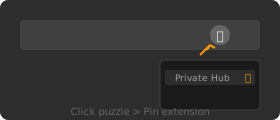
- Click the puzzle icon 🧩 in your toolbar
- Find "Private Hub" in the list
- Click the pin icon 📌
"Your browsing. Your business. Not ours."
Everything happens in your incognito tab. Chrome's architecture prevents extensions from collecting browsing history, cookies, or form data from private tabs. It's not policy. It's technical impossibility.
Our Tor infrastructure routes your traffic through encrypted relays. We see encrypted packets, not destinations. No logs means nothing to leak, hack, or hand over.
Free VPNs make money somehow. Many sell your browsing data or use your connection as exit nodes for other users. We charge for premium because privacy has real costs.
Some peer-to-peer VPNs use YOUR internet connection to route other users' traffic. Your IP could appear in someone else's logs.
Private Hub uses dedicated Tor infrastructure. Your connection is yours alone.
Private Hub works in incognito tabs for maximum privacy. You need to enable this permission manually.
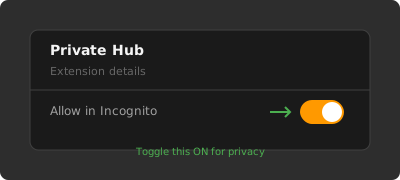
After enabling, click the Private Hub icon to start!